Canva AI for Beginners: Magic Design & Magic Write
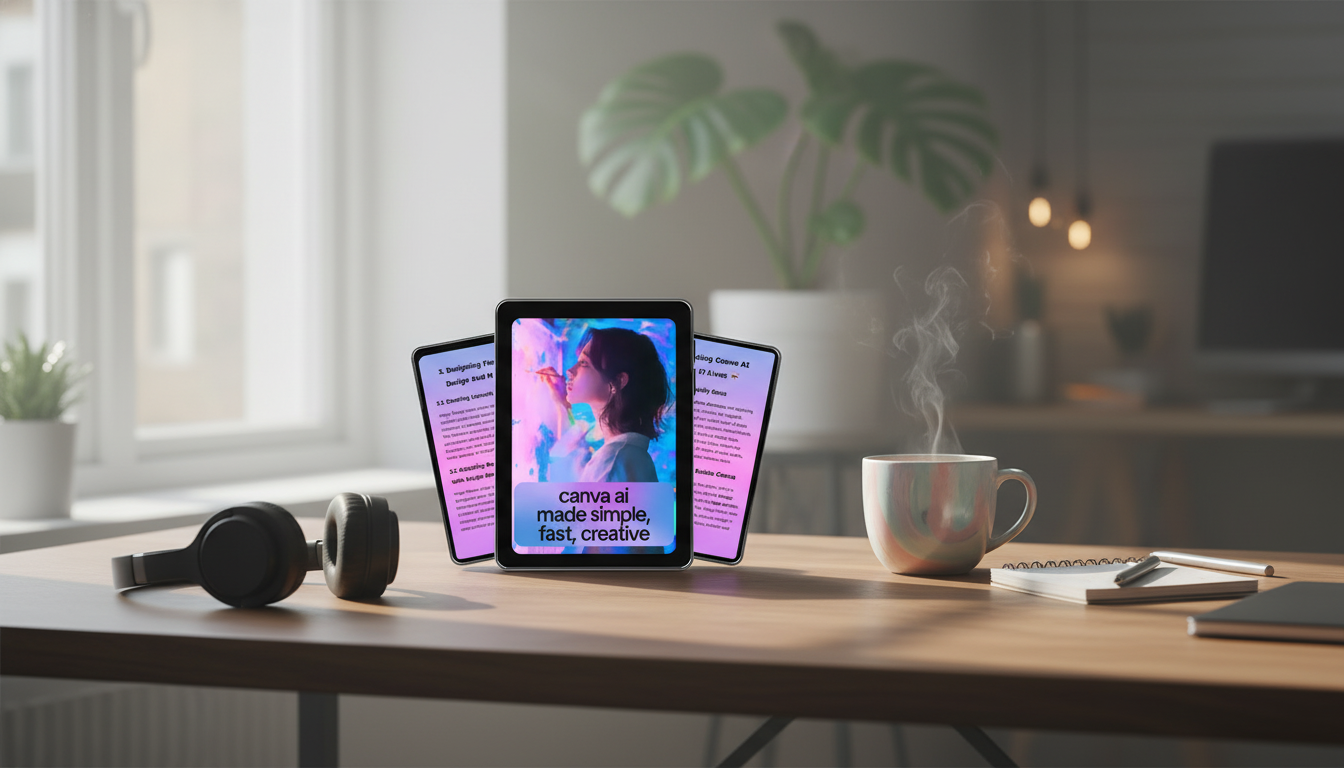
Canva AI Made Simple, Fast, Creative: A Beginner-Friendly Guide to Magic Design, Magic Write, and Better Results
Canva’s built-in AI tools can speed up design and writing while keeping your style consistent—if the basics are set up the right way. A few smart choices up front (format, fonts, colors, and a simple content structure) help AI outputs look intentional instead of random. Below is a beginner-friendly workflow for using Magic Design and Magic Write, plus practical ways to refine what you generate so it’s ready to download, print, or post.
What Canva AI Can Do (and Where It Helps Most)
Canva AI is most helpful when you want to move quickly from “rough idea” to “usable draft.” Magic Design can generate multiple layout directions fast, while Magic Write can produce copy options that you can tighten and brand-check. The best results come from being specific about who the content is for, what it needs to do, and what “done” looks like (format, length, vibe, and must-include details).
| Task | Best for | What to provide for cleaner output |
|---|---|---|
| Generate design options (Magic Design) | Quick layout exploration | Topic, platform size, brand colors, 3–5 keywords, any must-include text |
| Write or rewrite text (Magic Write) | Captions, headers, blurbs | Audience, tone, length, key points, words to avoid |
| Summarize content | Turning long notes into a slide outline | Source text, target format (bullets/headings), max length |
| Create variants | A/B testing hooks and titles | Original copy + number of variants + tone constraints |
For feature specifics and updates, Canva’s official resources are the best reference points: Canva Help Center, Canva Docs, and Canva Design School.
A Simple Setup That Makes AI Outputs Look “Designed”
AI can generate options, but your setup is what makes the results look cohesive. Start by choosing the exact format first (Instagram post, presentation, flyer, etc.) so spacing and typography fit the destination. Next, define a mini style guide: pick 1–2 fonts, 2–4 colors, and one overall visual vibe (minimal, bold, playful, editorial). That’s enough to make a “series” feel consistent.
Keep the structure simple: headline, subhead, 2–4 supporting points, and a single call-to-action. This prevents clutter and keeps the viewer’s eye moving in the right order. Finally, double-check accessibility basics: readable font sizes, good contrast, and lines that aren’t so long they’re hard to scan.
Magic Design: From Idea to Layout in Minutes
Magic Design works best when you feed it one strong “seed” instead of a vague topic. Start with a short description and the exact deliverable: “square post,” “3-slide mini deck,” or “A4 flyer.” Then add the constraints that actually matter—brand colors, a preferred vibe, and any fixed copy that must appear exactly as written (like a discount code, date, or URL).
How to pick the best AI layout quickly
When you’re scanning options, judge them by hierarchy first. The winning layout makes the main message obvious at a glance, with supporting elements that guide attention rather than compete for it. Decorative shapes are fine, but they should frame the message—not replace it.
Fast refinements that make it look custom
Swap stock imagery for photos that match your brand (or product images), simplify busy backgrounds, and standardize icons so a carousel or multi-page design looks like one set. Once you find a layout that works, duplicate the page and create variations by changing the headline or offer—this is one of the fastest ways to build a consistent content series.
Magic Write: Turning Rough Notes into Polished Copy
Magic Write shines when you use it for structure first and style second. If your notes are messy, ask for a clean bullet list or outline before you ask for a rewrite in a specific tone. Requesting multiple options (short, medium, punchy) also reduces the temptation to over-edit one draft that isn’t quite right.
Keep it from sounding generic
Trim for clarity and action
Practical AI Input Patterns for Better Results
A Fast Beginner Workflow: Create, Edit, Export
Mistakes That Make AI Designs Look Generic (and Quick Fixes)
What’s Included in the Digital Guide and Who It’s For
If you want a straightforward, repeatable way to use Canva’s AI features without getting stuck on setup, wording, or layout choices, the digital download Canva AI Made Simple, Fast, Creative – Beginner Friendly Canva AI Guide (Digital Download) is built around practical steps: moving from idea to finished designs, using consistent styling, and applying quick editing checks that keep outputs on-brand.
More in-stock digital guides
- How to Value Your Car Like a Pro Before Selling or Trading – Ultimate Guide to Car Valuation for Sale or Trade-In
- Calm Paws: Ending Dog Separation Anxiety – Ultimate Guide to Calming Your Dog’s Anxiety with Proven Techniques, Case Studies & AI Prompts
FAQ
Is Canva AI suitable for complete beginners?
Yes—beginners can start with templates and AI-generated variations, then improve results by setting simple constraints like format, colors, and tone. Plan to edit for clarity and always fact-check details before publishing.
What’s the difference between Magic Design and Magic Write?
Magic Design generates visual layout options for things like posts, flyers, and slides, while Magic Write generates and rewrites text like captions, headers, and blurbs. Many workflows use both: design first for structure, then writing to refine the message.
How can AI-generated designs look more unique?
Use a consistent mini brand kit (fonts and colors), swap imagery to match your style, tighten the copy, and remove extra decorative elements. Once you find one strong layout, duplicate it to build a cohesive series instead of starting from scratch each time.















Leave a comment